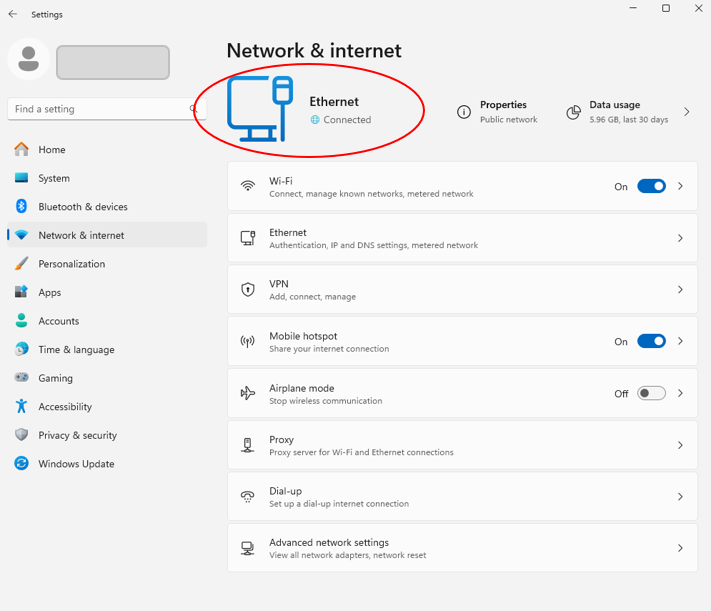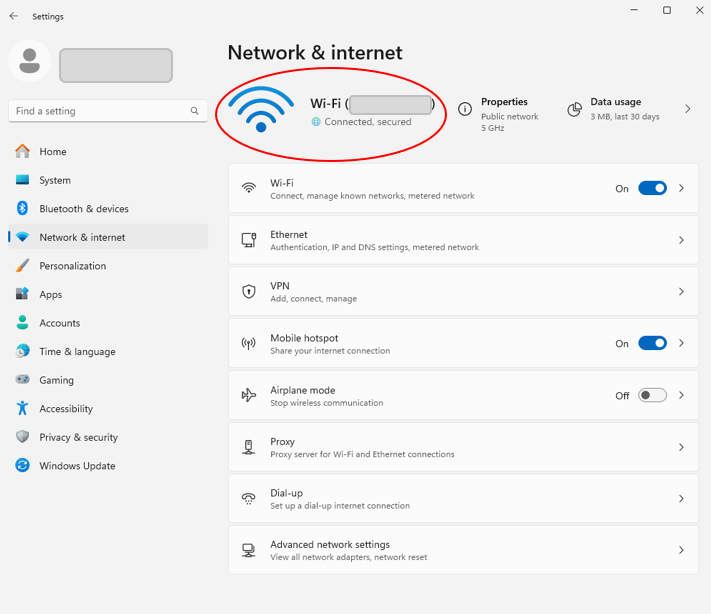
– Users can share Wi-Fi, Ethernet, or cellular data (if the device has cellular capabilities).
– Supported OSs: Windows 10 and 11
– Hardware Needs: Wi-Fi adapter
Step-1. Open Settings:
(1) Go to Start → Settings → Network & Internet.
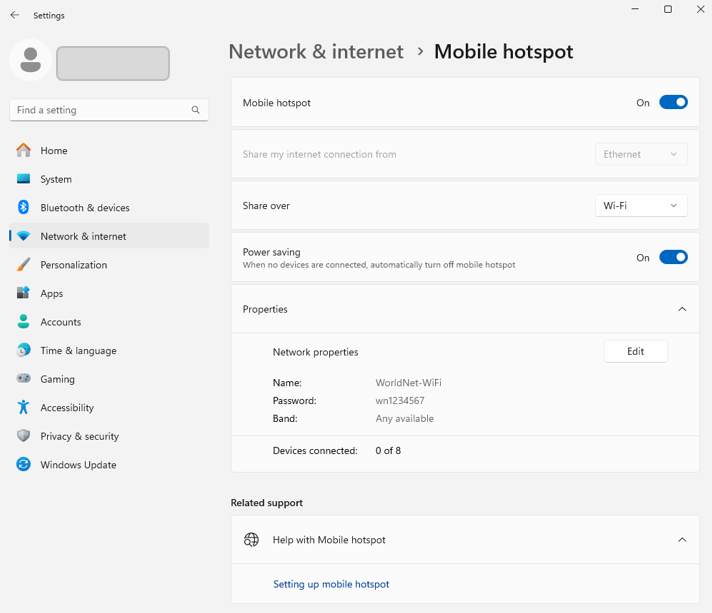
(2) Select Mobile Hotspot
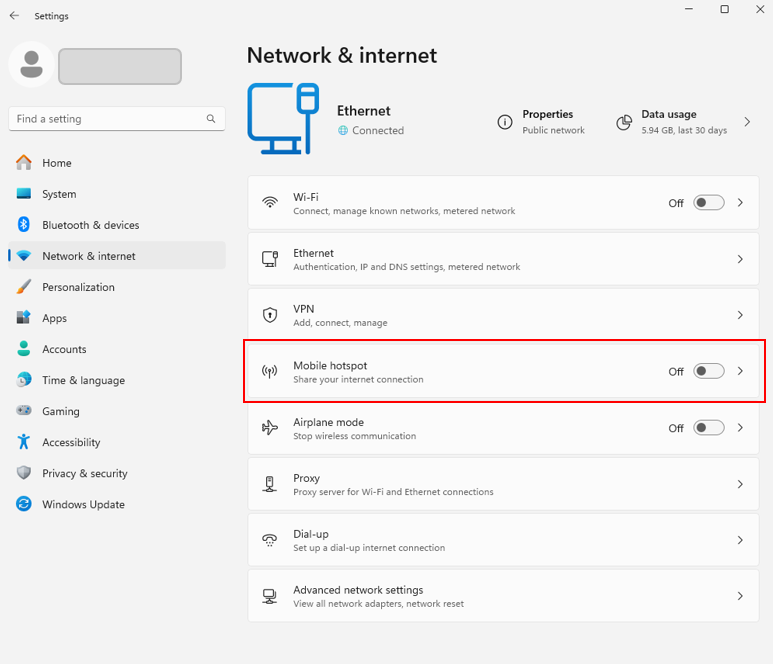
Step-2. Mobile hotspot configuration
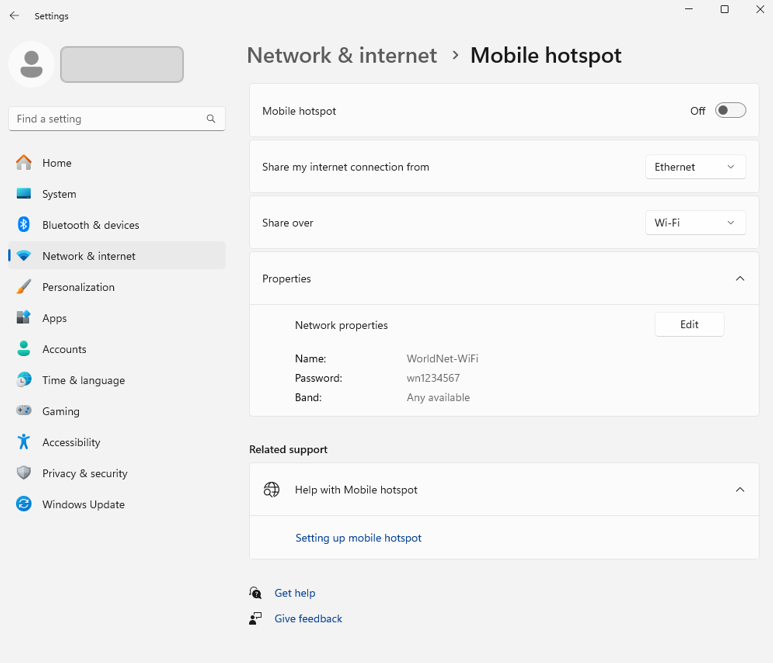
(1) Share my internet connection from [Ethernet]
(2) Share over [Wi-Fi]
(3) Properties > Click [Edit]
– Name: (create your Wi-Fi Name) e.g. WorldNet-WiFi
– Password: (create your password) e.g. wn1234567
– Band: Any available (note that you can choose either 5 GHz or 2.4 GHz)
(4) Mobile hotspot: On (blue)
Step-3. Check the Wi-Fi connection on your device (mobile)

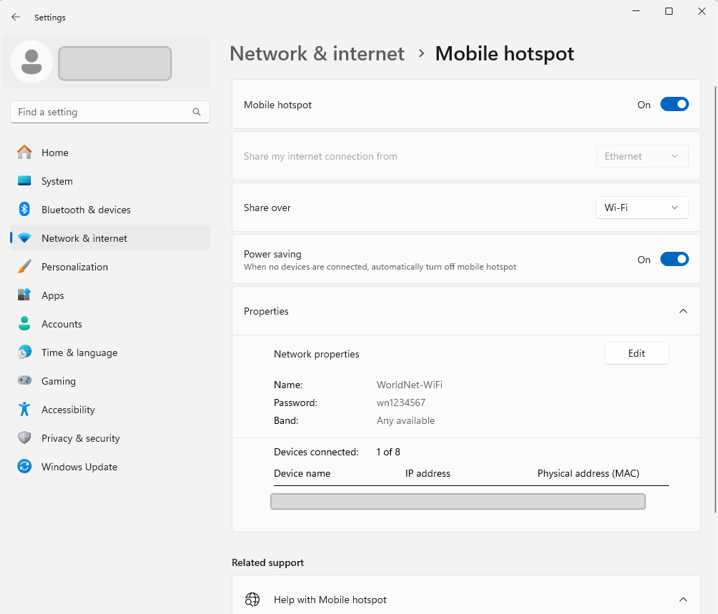
| Note that the Mobile Hotspot feature works with both Ethernet and Wi-Fi connections.