
| Email Setup on Outlook (New)
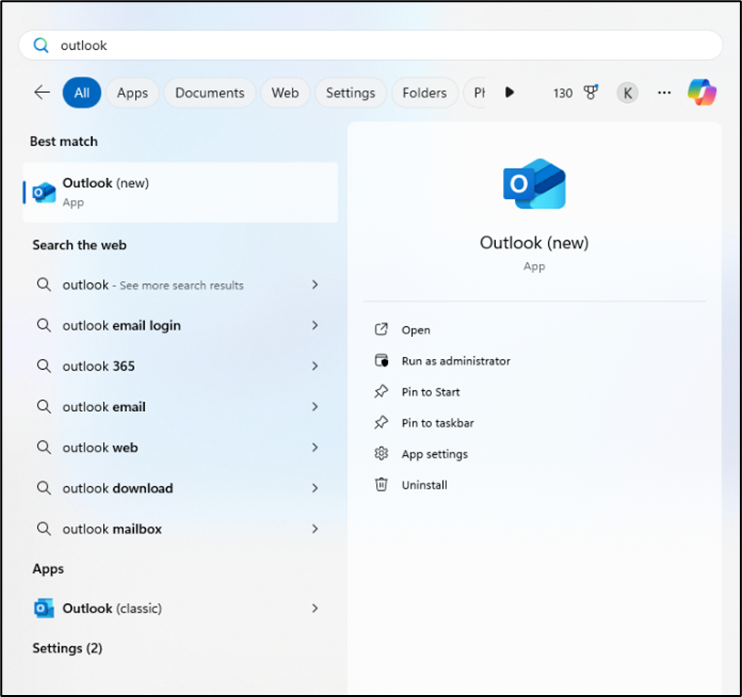
Step-1. Open Outlook
Search for “Outlook” in the Windows search bar and open the application.
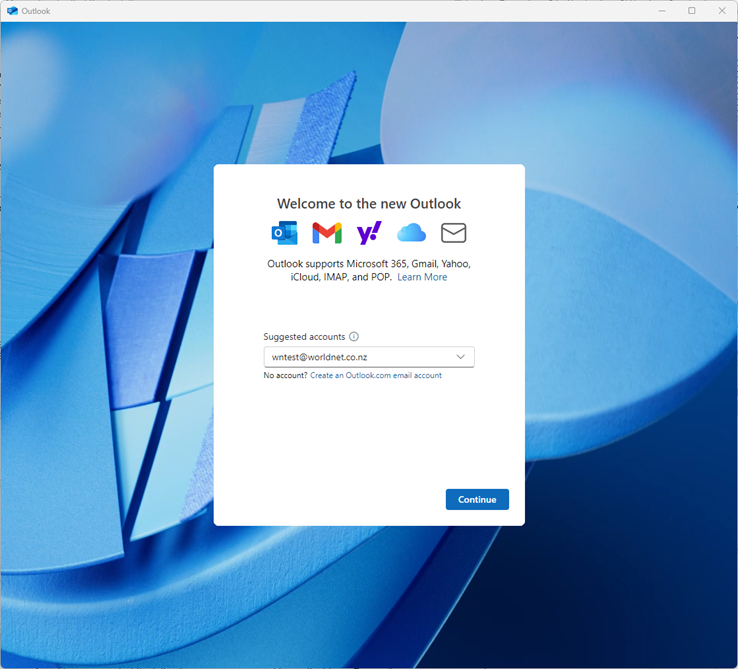
Step-2. Enter Email Address
Type your email address when prompted and click Next.
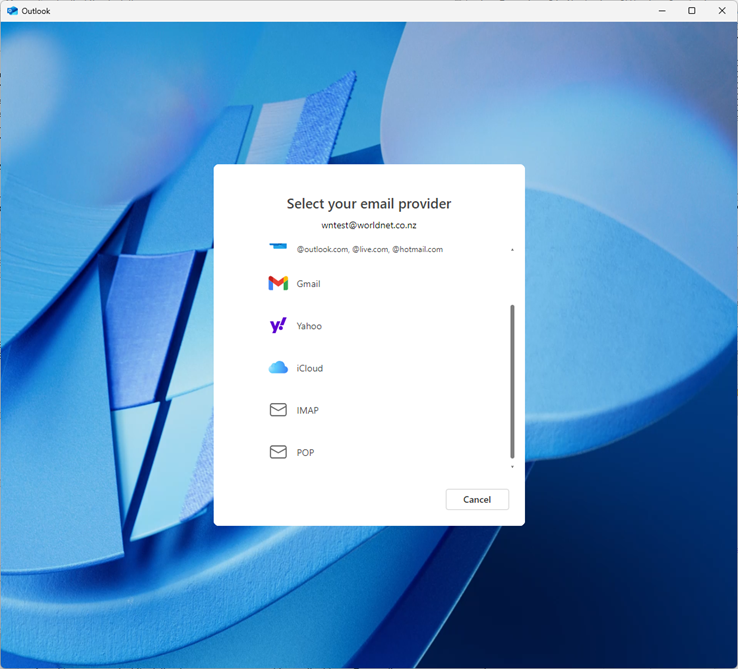
Step-3. Choose Email Type
– Select either IMAP or POP as your email type, depending on your preference.
Note that IMAP syncs emails across multiple devices by storing them on the server, while POP downloads emails to one device and typically removes them from the server.
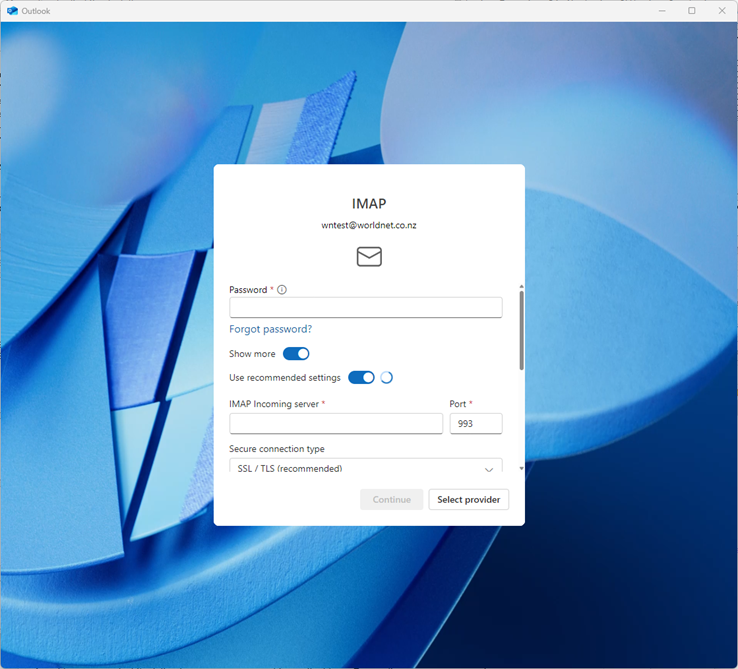
Step-4. IMAP / POP3 Configuration
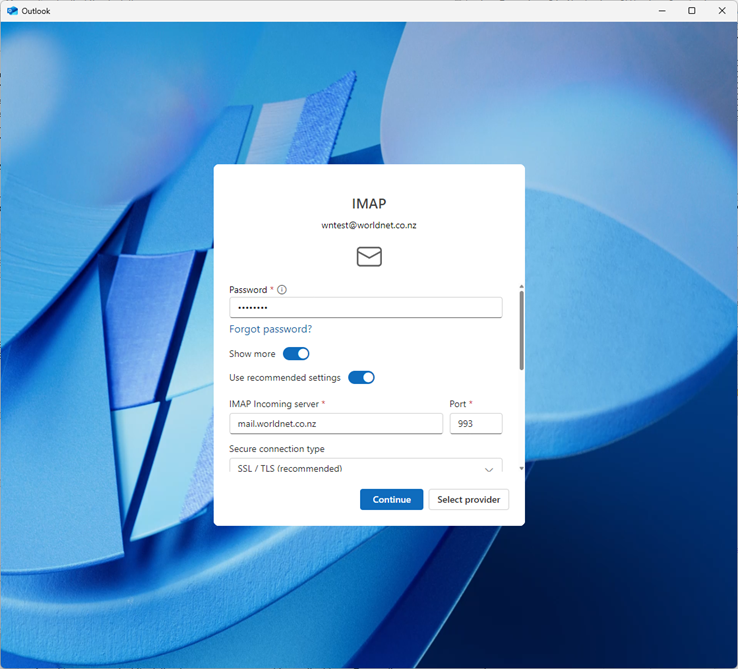
If you selected IMAP, use the following settings:
IMAP Incoming Server: mail.worldnet.co.nz
Port: 993
Security: SSL / TLS (recommended)
SMTP Username: Your email address
SMTP Password: (Enter if it differs from your IMAP password)
SMTP Outgoing Server: mail.worldnet.co.nz
Port: 587
Security: StartTLS
If you selected POP3, use the following settings:
POP3 Incoming Server: mail.worldnet.co.nz
Port: 995
Security: SSL / TLS (recommended)
SMTP Username: Your email address
SMTP Password: (Enter if it differs from your POP3 password)
SMTP Outgoing Server: mail.worldnet.co.nz
Port: 587Security: StartTLS

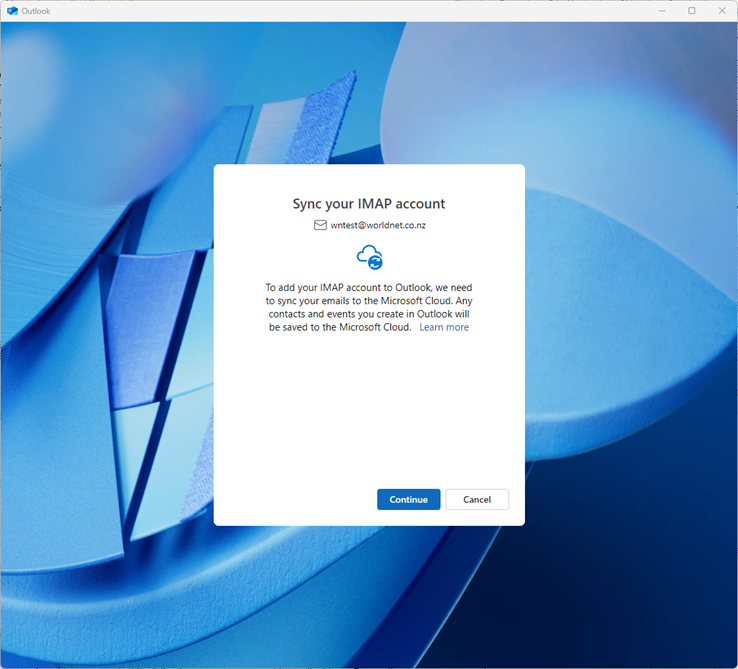
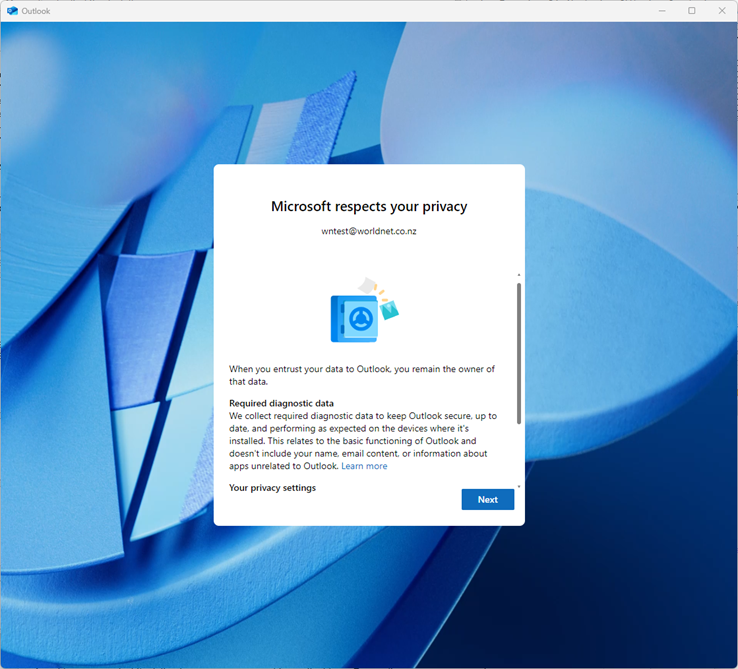
Step-5. Understand Microsoft’s Policy
Step-6. Test an email service
Please note that if the email configuration fails on the first attempt, you may need to try again once or twice. This is because our mail server may occasionally respond slowly or experience a temporary delay.