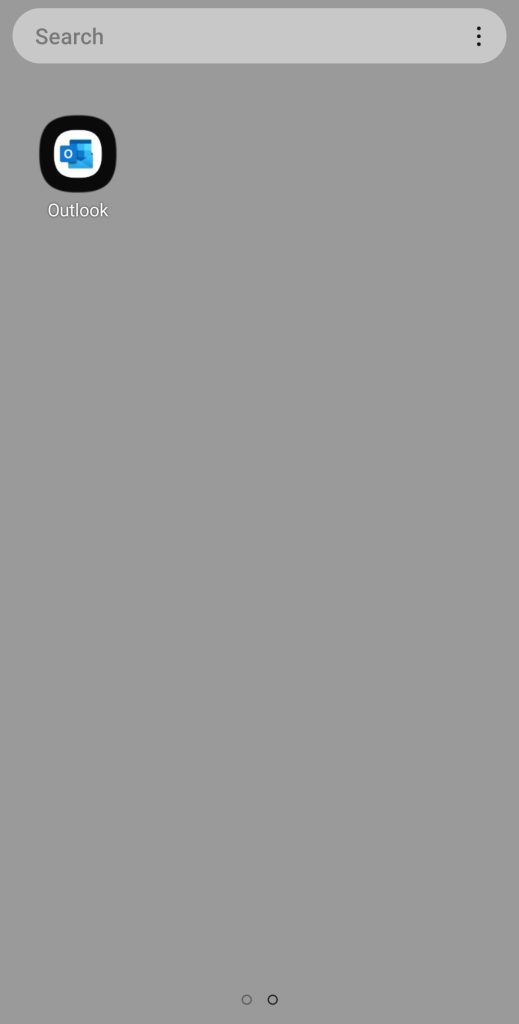
Step-1. Install Outlook App on a mobile
You can search the App on Play Store (Android) or App Store (Apple).
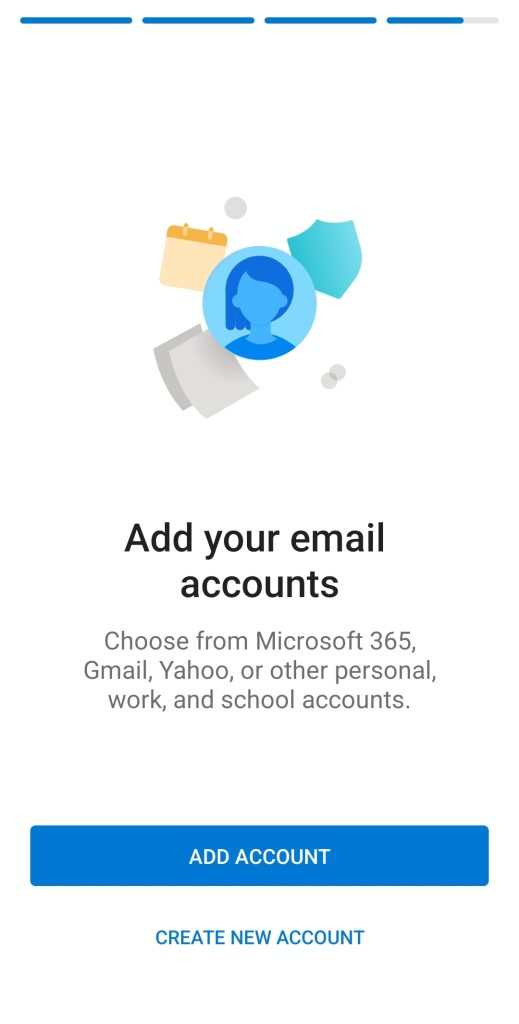
Step-2. Add Account
Tab the [ADD ACCOUNT].
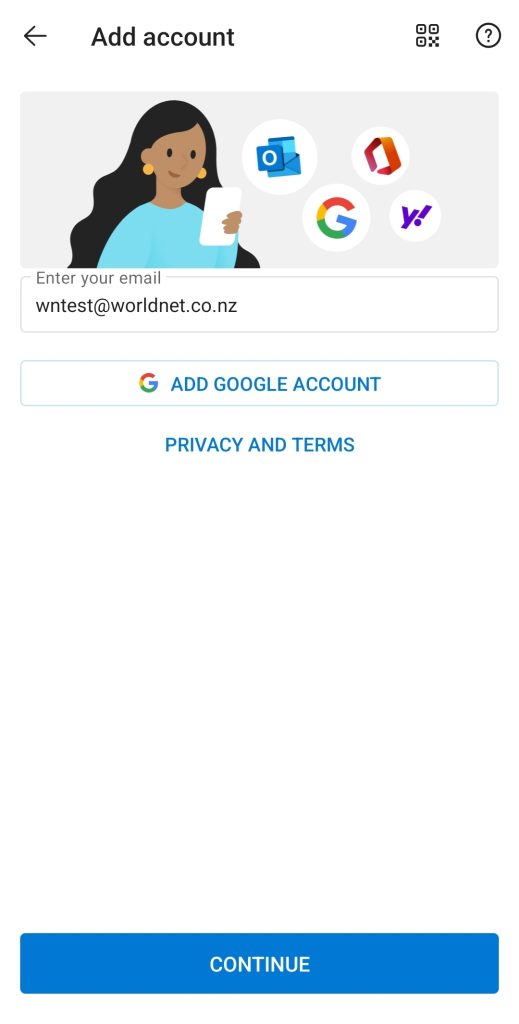
Step-3. Enter your email
After entering your email address (e.g. wntest@worldnet.co.nz), tab [CONTINUE].
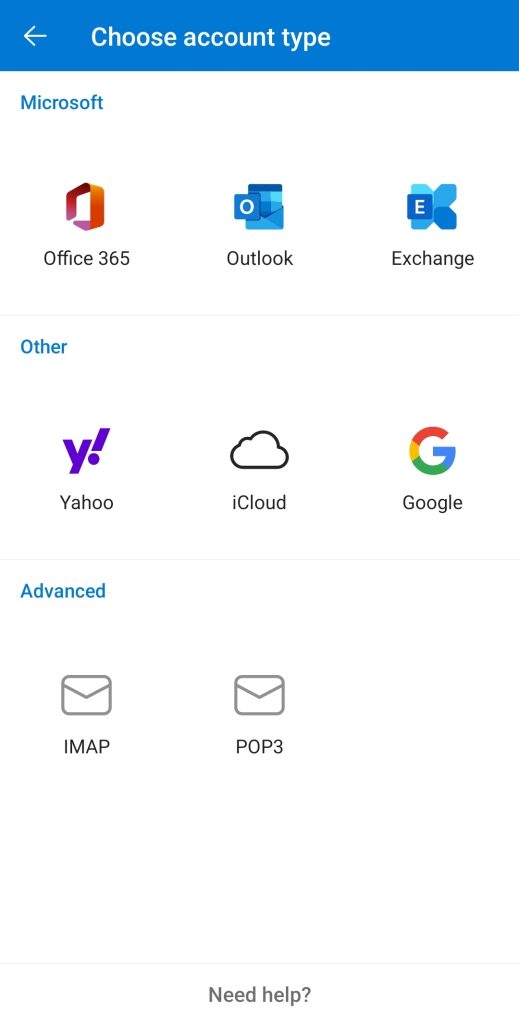
Step-4. Choose account type
– You can choose IMAP or POP3 options.
Note that IMAP syncs emails across multiple devices by storing them on the server, while POP downloads emails to one device and typically removes them from the server.
Step-5. Connect POP3 (if you choose POP3)
Note that if you choose to use IMAP, ensure you use the IMAP port number (993) instead of the POP3 port number (995). All other settings remain the same as listed below.
Email Address: wntest@worldnet.co.nz
Display Name (example: Mike Rosoft): WNTEST
Description (example: Work): TESTING
POP Incoming Email Server
POP Host Name (e.g. pop.domain.com) mail.worldnet.co.nz
Port (e.g.443): 995
Security type: SSL/TLS | StartTls | None SSL/TLS
POP Username (example: mike.rosoft) wntest@worldnet.co.nz
POP Password (your email password)
SMTP Outgoing Email Server
SMTP Host Name (e.g. smtp.domain.com:port) mail.worldnet.co.nz
Port (e.g. 443): 587
Security type: SSL/TLS | StartTls | None StartTLS
SMTP Username (example: mike.rosoft) wntest@worldnet.co.nz
SMTP Password (your email password)
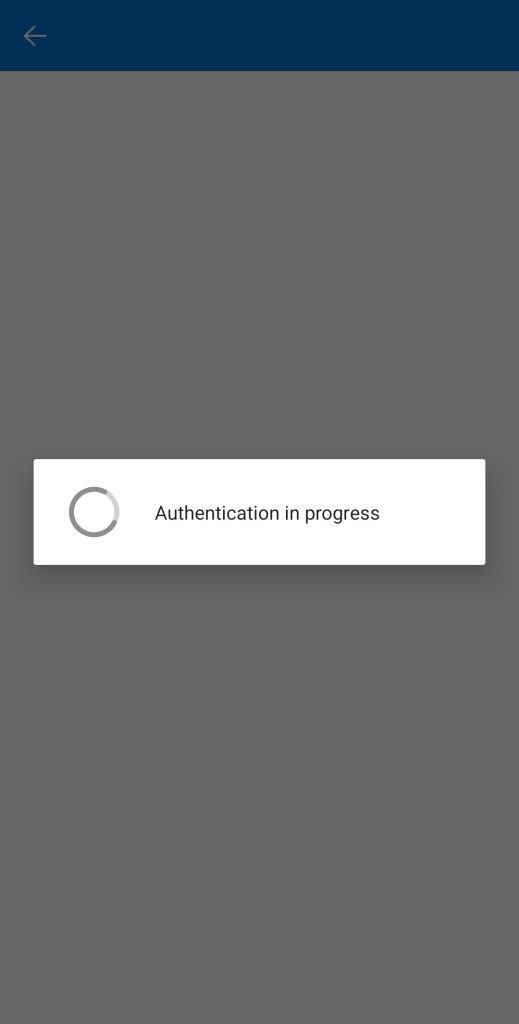
Step-6. Authentication in progress
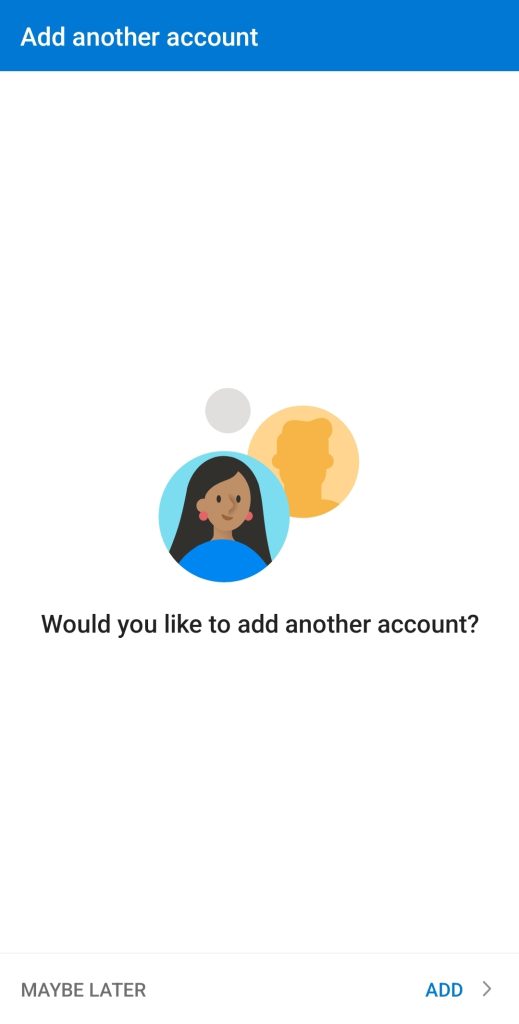
Step-7. Add another account (Skipped)
Step-8. Test an email service